Turn off Camera Shake in Die of Death: setting and troubleshooting
Disable Camera Shake in Accessibility to reduce motion from attacks and effects. Follow the checks and understand what the option cannot fix.
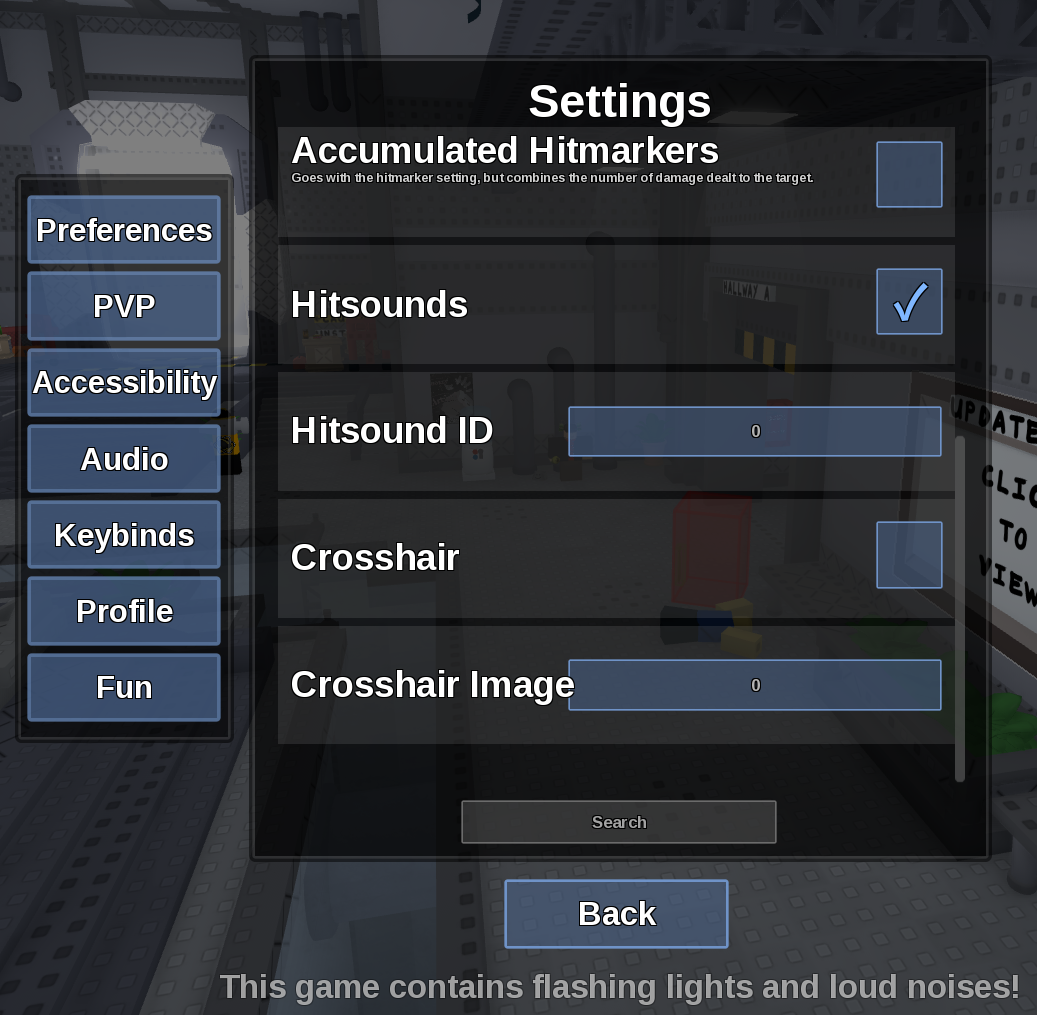
Direct answer
Disable Camera Shake in Accessibility to reduce motion from attacks and effects.
Location: Settings > Accessibility
Verified facts
- Menu location: Settings > Accessibility.
- Captured default or control: Toggle.
- Turn the toggle off, close Settings and compare during the same type of chase or hit effect.
Checks in order
- Open the in-game Settings panel and go to Accessibility.
- Turn the toggle off, close Settings and compare during the same type of chase or hit effect.
- Close and reopen Settings, then rejoin once if persistence is the symptom.
Source, review and limitations
Reviewed on September 9, 2026. In-game Settings panel captured in August 2026.
The option may not remove every camera movement built into Roblox or scripted scenes.
Related pages
- Reduce lag with Low Detail Mode
Low Detail Mode simplifies game visuals and is the first in-game option to try for rendering-related slowdown.
- Turn off blood
Set Blood to Off, or Low if you only want reduced intensity.
- Epilepsy Mode
Epilepsy Mode reduces flashing effects, but the game itself warns that playing with such a condition is not recommended.
- Disable Map Effects
Turn Map Effects off to remove supported weather rendering such as rain or snow.
- Disable LMS Effects
Turn LMS Effects off to reduce special Last Man Standing visuals.