Reduce lag with Low Detail Mode in Die of Death: setting and troubleshooting
Low Detail Mode simplifies game visuals and is the first in-game option to try for rendering-related slowdown. Follow the checks and understand what the option cannot fix.
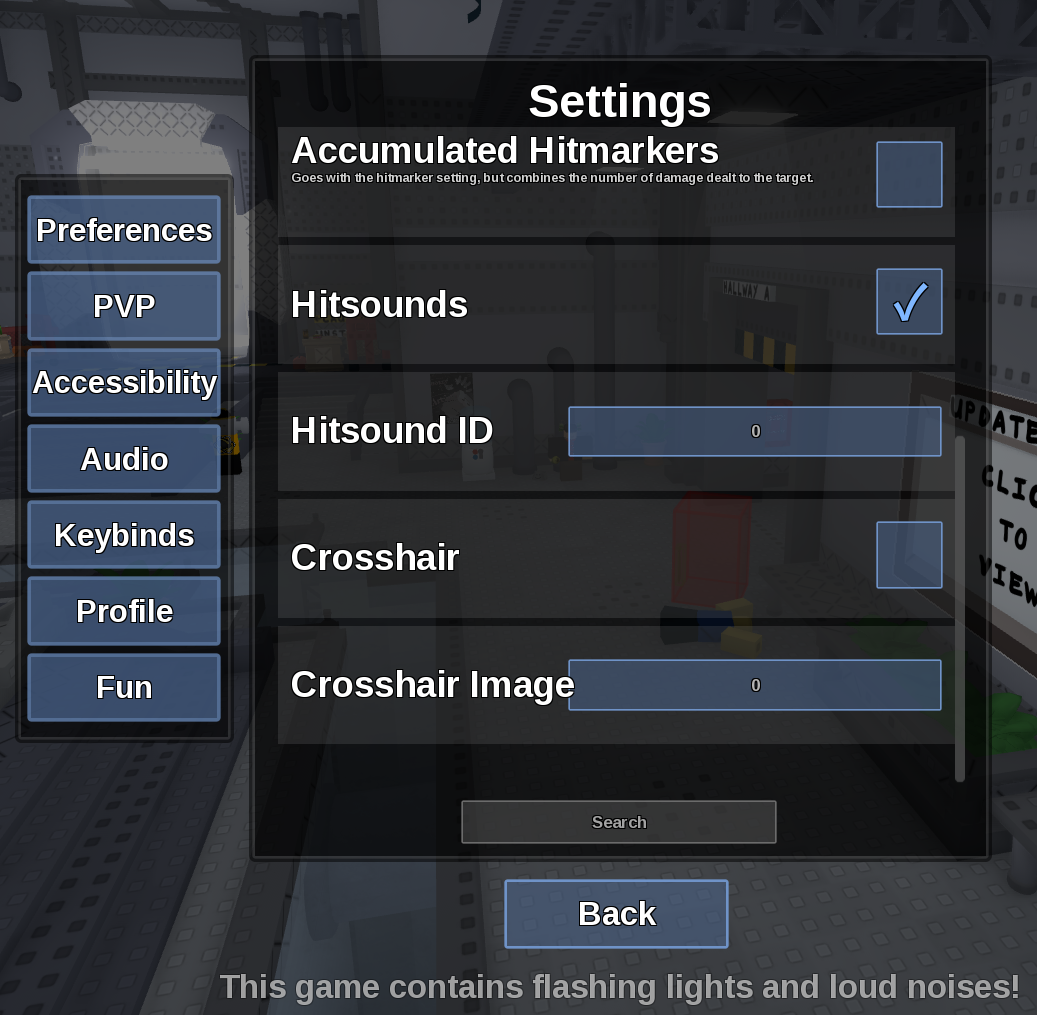
Direct answer
Low Detail Mode simplifies game visuals and is the first in-game option to try for rendering-related slowdown.
Location: Settings > Accessibility
Verified facts
- Menu location: Settings > Accessibility.
- Captured default or control: Toggle.
- Enable Low Detail Mode, disable Map Effects, rejoin and compare the same map before lowering Roblox graphics.
Checks in order
- Open the in-game Settings panel and go to Accessibility.
- Enable Low Detail Mode, disable Map Effects, rejoin and compare the same map before lowering Roblox graphics.
- Close and reopen Settings, then rejoin once if persistence is the symptom.
Source, review and limitations
Reviewed on September 9, 2026. In-game Settings panel captured in August 2026.
Network latency and server simulation lag are not fixed by visual-detail settings.
Related pages
- Turn off Camera Shake
Disable Camera Shake in Accessibility to reduce motion from attacks and effects.
- Turn off blood
Set Blood to Off, or Low if you only want reduced intensity.
- Epilepsy Mode
Epilepsy Mode reduces flashing effects, but the game itself warns that playing with such a condition is not recommended.
- Disable Map Effects
Turn Map Effects off to remove supported weather rendering such as rain or snow.
- Disable LMS Effects
Turn LMS Effects off to reduce special Last Man Standing visuals.