Show Hitboxes in Die of Death: setting and troubleshooting
Show Hitboxes draws attack collision areas as a visual aid. Follow the checks and understand what the option cannot fix.
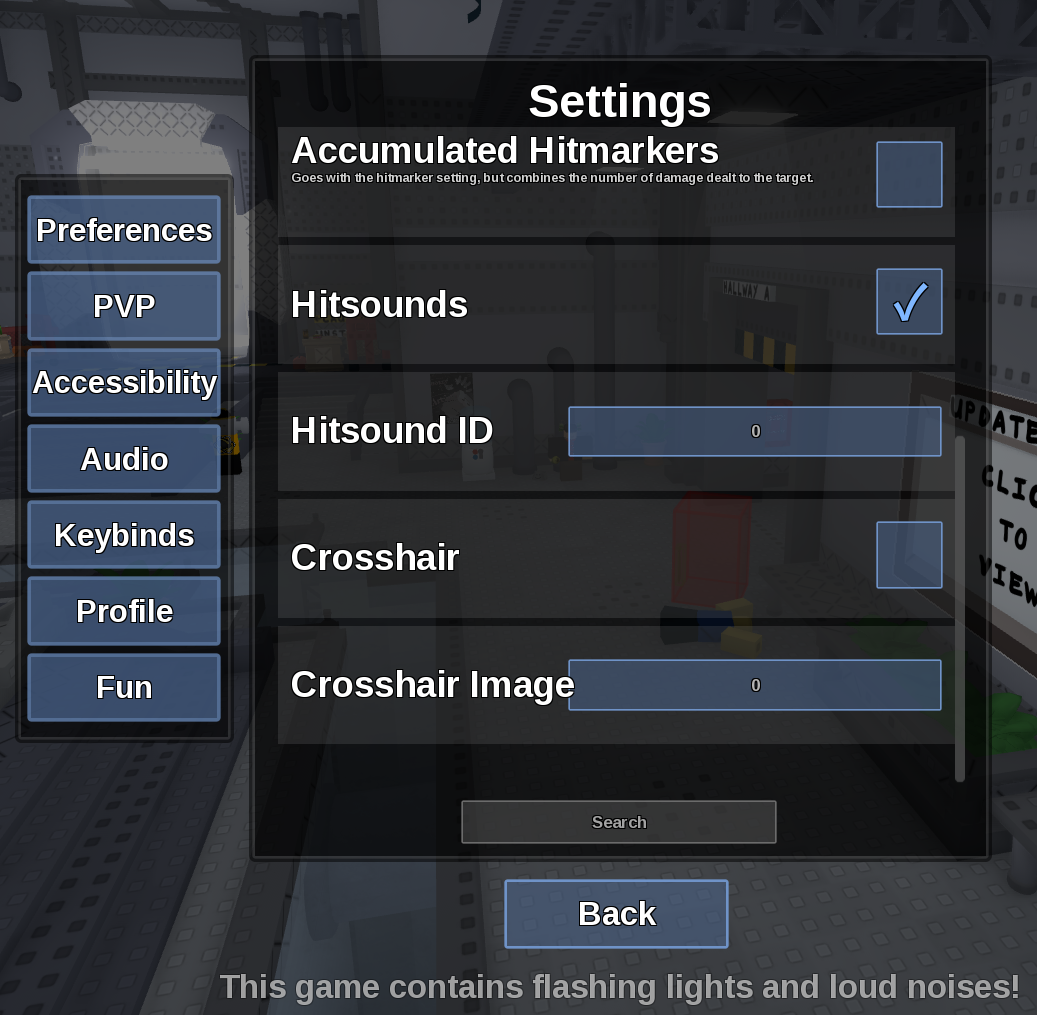
Direct answer
Show Hitboxes draws attack collision areas as a visual aid.
Location: Settings > PVP
Verified facts
- Menu location: Settings > PVP.
- Captured default or control: Toggle.
- Enable the toggle, set a short Hitbox Linger value and perform one attack to identify the displayed volume.
Checks in order
- Open the in-game Settings panel and go to PVP.
- Enable the toggle, set a short Hitbox Linger value and perform one attack to identify the displayed volume.
- Close and reopen Settings, then rejoin once if persistence is the symptom.
Source, review and limitations
Reviewed on September 9, 2026. In-game Settings panel captured in August 2026.
Displayed boxes help inspect timing but do not change server-side hit detection.
Related pages
- Hitsound ID not saving
A numeric Hitsound ID can still reset if the field rejects it or the session does not persist the change.
- Show HurtBoxes
Show HurtBoxes visualizes the character area that can receive a hit.
- Hitbox Linger
Hitbox Linger controls how long a displayed hitbox remains visible after an attack.
- Show Hitmarkers
Show Hitmarkers displays confirmation when your attack registers a hit.
- Accumulated Hitmarkers
Accumulated Hitmarkers stacks confirmations instead of replacing the previous marker.